QR menu for restaurants: the complete guide 2026
A QR menu is your venue's menu opened through a code that guests scan with their phone. Done well, it gives you current prices, a menu in several languages and fewer questions for the waiters. Done badly, it is an awkward PDF nobody wants to open. This guide shows the difference.
In short
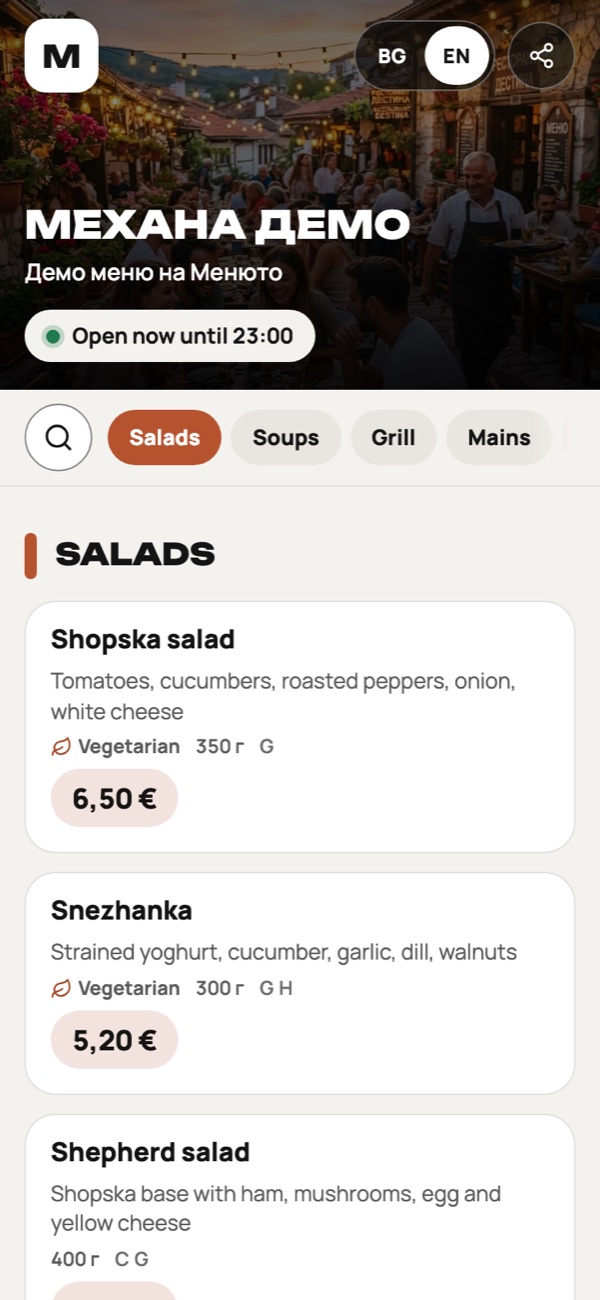
- The best digital menu is a web page, not a photo or a PDF of the paper menu: it loads fast, reads well on a phone and changes in seconds.
- Guests install nothing. The code opens the menu straight in the browser.
- Since the euro arrived on 1 January 2026, a price change is a matter of minutes, not another print run.
- Put the code where guests already sit or wait: tables, door, window and delivery bags.
- Test the code on at least two different phones before launch.
What a QR menu for a restaurant is
A QR code is a square image that a phone reads with its camera. No app is needed: the camera of a modern phone recognizes the code and offers to open the link. The link leads to your menu.
What matters is what sits behind the code. It can lead to a photo of the paper menu, to a PDF file or to a real digital menu built for phones. All three look the same on the table, but for the guest and for you they are very different.
Three things make a QR menu good: fast loading, a clear look on a small screen and data that is always correct. Everything else, from button colors to animations, is secondary.
In numbers
- guest languagesBG, EN, DE, RU, IT, UK
- 6
- EU allergens markedon every dish
- 14
- steps to a QR codemenu, design, placement
- 3
Paper menu, PDF or a real digital menu
Many venues start with a PDF because it is quick. The problem is that a PDF is made for print, not for a six-inch screen. Guests pinch to zoom, hunt for the line with the price and go back.
| - | Paper menu | PDF behind a QR code | Digital menu (web) |
|---|---|---|---|
| Easy to read on a phone | No | No | Yes |
| Loads fast | Nothing to load | Often a heavy file | Yes |
| Changing a price | Reprint | New file, new upload | Seconds, no printing |
| Menu in another language | Separate menu or the waiter translates | A second file | Language switch inside the menu |
| Photos and allergens | Limited by space | Same as paper | On every dish |
| Sold-out dish | Guest finds out last | Guest finds out last | Hidden immediately |
| Path to online ordering | No | No | Yes |
When a PDF is still fine
If you open tomorrow and have no time, a PDF behind the code is an acceptable stopgap. Treat it as a first draft. As soon as you have an hour, move the menu into a real digital one and keep the same QR code.
What guests expect from a digital menu
Think of a hungry guest with a glass in one hand and a phone in the other. The menu has to work under those conditions.
No app, no sign-up
Scan, see the menu. Every extra step is a guest who gives up and calls the waiter.
Fast loading
A light web page, not a heavy file. In a cellar or on a terrace the signal is often weak.
Languages for tourists
A menu in a language the guest reads reduces wrong orders. Menuto supports BG, EN, DE, RU, IT and UK.
Photos of the dishes
A good photo sells better than a description. Not needed for every dish, but worth it for the main ones.
Allergens on every dish
A guest with an allergy should find the information alone. Read about the 14 allergens.
Readable type and big buttons
Name and price must be readable without zooming.
Do not forget older guests and those who simply do not want a phone on the table. Contrast and type size matter for them too, and a spare paper menu protects the relationship. The QR menu is a convenience, not a condition for service.
Prices in euro and live changes
Bulgaria has used the euro since 1 January 2026, with the rate fixed at 1.95583 leva per euro (European Parliament). For venues that means converting every price once and then reviewing the menu regularly.
Paper makes every correction expensive: new print, new laminates, the old menu still sitting on some table. A digital menu removes that work.
- A change shows on all tables at once, without collecting menus.
- A sold-out dish disappears in seconds instead of being crossed out with a pen.
- Seasonal and daily menus switch on by time and weekday (on plans with schedules).
- Show the price as "€12.50". Do not show a second price in leva on the same line unless a rule applies to you: check the current rules with the tax authority (НАП) or the Ministry of Finance.
How to set up a QR menu step by step
All of this is also described on the Menuto QR menu page.
- #01
Prepare the content
Collect dishes, current prices in euro, weights and allergens. Drop dishes you have not cooked in months.
- #02
Upload the menu
In Menuto you can photograph the paper menu (AI reads it), upload a PDF or enter dishes by hand.
- #03
Add allergens, descriptions and photos
Mark allergens on every dish and add a good photo to at least the main dishes.
- #04
Turn on languages
Pick the languages of your guests. Start with Bulgarian and English and add others as needed.
- #05
Design the QR code
Add your logo and colors. The QR designer is in the paid plans.
- #06
Test on several phones
Scan from a distance, in poor light, with iPhone and Android. Check on mobile data, not only on Wi-Fi.
- #07
Print and place
Follow the placement tips in the next section and give staff a short briefing.
Where to place QR codes
Table tentsMain
The main spot. Place the code at eye level or flat on the table, where the guest already looks.
Door and windowAttract
Passers-by see the menu and prices before they walk in. Especially useful for cafés and takeaways.
Bar and till
For guests who wait in line or order at the counter.
Delivery bags and boxes
A sticker or flyer with the code leads to the menu for the next order.
Keep an eye on your codes
A printed code can be covered by someone else's sticker. Scan your own tents regularly and print a short menu address under the code so the guest can see where it leads. That way people trust the code and you notice a swap quickly.
The most common QR menu mistakes
Name one person who owns the menu. Prices usually drift not because the system fails but because nobody is assigned to maintain it.
Brief your staff in 10 minutes
- Where the codes are and how to swap worn tents.
- How to help a guest who cannot scan: show the menu on your own phone or bring paper.
- Who changes a price or hides a sold-out dish, and how fast.
- What to say about allergens: "It is all in the menu, I will check with the kitchen."
Do this
- A web menu built for phones
- A short call to action by the code: "Scan the menu"
- Testing on several phones before printing
- Allergens and prices that match the kitchen
- A spare paper menu for guests who prefer it
Avoid this
- A photo or PDF of the whole paper menu
- A code on a light or patterned ground with low contrast
- A code under the glasses, out of reach
- Outdated prices because nobody owns the menu
- Forcing guests to register or install an app
From QR menu to ordering at the table
The menu is step one. Step two is letting guests order straight from the table without waiting for a waiter. The order reaches the kitchen and you pay no commission to an intermediary.
How this works, and what an intermediary costs, is covered in online ordering without commission. If you want guests to order themselves inside the venue, see the self-service kiosk. Everything is listed on the features page.
If you number your tables, every order knows where it comes from and the waiter does not walk around with a notepad. Even if you only want a menu for now, pick a platform that can add ordering later without changing your QR codes.
Checklist before launch
Before you switch the QR menu on
- All prices are in euro and checked by the kitchen.
- Allergens are marked on every dish.
- Sold-out and seasonal dishes are hidden or flagged.
- The languages your guests really use are on.
- The code was scanned on iPhone and Android, on Wi-Fi and mobile data.
- Tents are printed large enough, on a matte material.
- Every waiter knows how to help a guest who cannot scan.
- One person is responsible for keeping the menu current.
Total8 items
Frequently asked questions
What is a QR menu?
A QR menu is a menu the guest opens on their phone by scanning a QR code on the table. No app is needed. The best solution is a web page built for phones, not a PDF.
How much does a QR menu for a restaurant cost?
It depends on the provider and plan. Menuto has a free start for 1 menu, and current paid prices are on the pricing page.
Do guests need to download an app?
No. The phone camera recognizes the code and opens the menu in the browser.
Can I have the menu in several languages?
Yes. Menuto shows the menu in BG, EN, DE, RU, IT and UK, and the guest picks the language.
How do I change prices after the switch to the euro?
You edit the price in the dashboard and it updates on every code at once. No reprint is needed because the code stays the same.
What if a guest does not want to scan?
Keep a few paper menus or let the waiter show the menu on their own phone. A QR menu complements paper, it does not ban it.
Do I need to mark allergens on the menu?
Information on the 14 allergens is part of EU food rules. Details and a legal note are in the article on allergens on the menu.